Blur Image
Blur the whole photo, or paint over the parts you want hidden — faces, labels, addresses — and choose blur or pixelate. Runs in your browser, nothing is uploaded.
How to blur part of an image
1. Upload a photo
JPG, PNG, WebP or HEIC.
2. Blur all or brush an area
Set the strength, switch between blur and pixelate, and paint over the region with the brush.
3. Download
Full resolution, same format as the original.
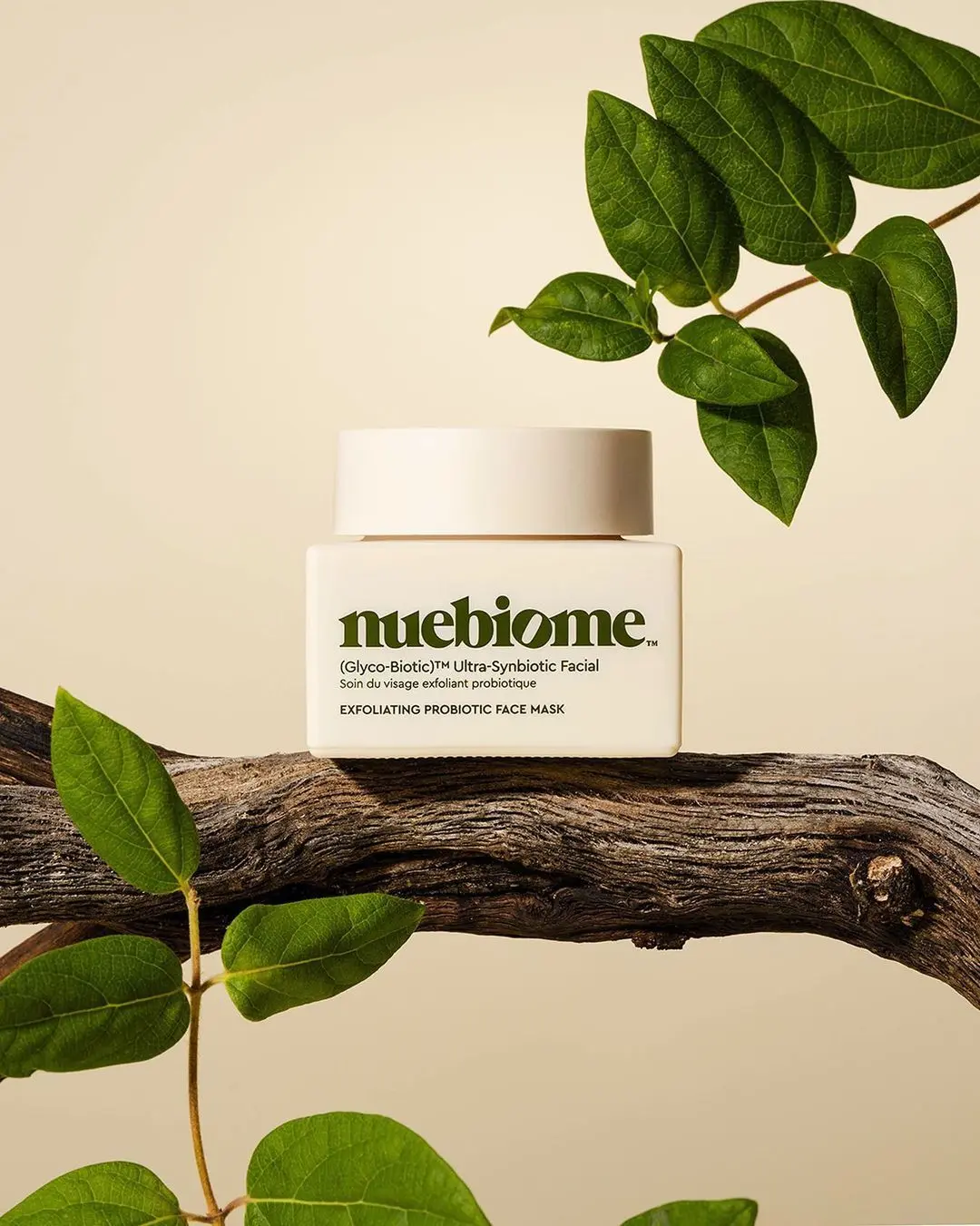
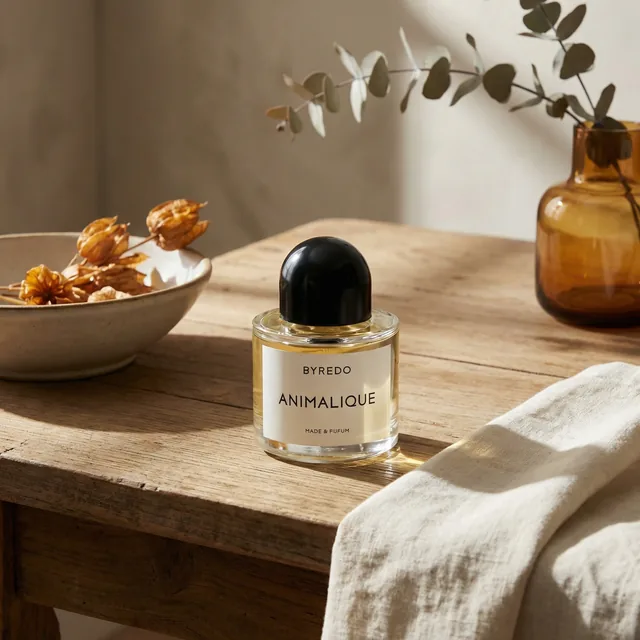
What the AI studio makes from one product photo
The free tools handle quick edits. The studio generates the whole scene — backgrounds, lighting, models and hands — from a single upload.
-p-1080.webp)
Brush precision
Adjustable brush size and an eraser to fix strokes — only what you paint gets blurred.
Blur or pixelate
Soft gaussian blur for backgrounds, mosaic pixelation for hiding text and faces.
Private by design
Sensitive photos should not go to a server. This tool never uploads anything.
Free and unlimited
No watermark, no daily cap, no account.
Keep improving your product photos
Learn the AI product-photo workflow, try another free tool, or work out what a shoot would cost.
Common questions
How do I blur part of a picture?
Upload it, choose “brush”, set the size and paint over the area. Use the eraser to undo strokes, then download.
Is blur enough to hide text or a face?
For text and faces, pixelate at a large block size is safer than blur — heavy blur can sometimes be partly reversed. The tool lets you switch with one click.
Can I blur the background of a product photo?
You can brush the background here, but for a clean subject cutout the AI studio’s background tools do it automatically.
Is the photo uploaded?
No. Everything runs on your device in the browser canvas.