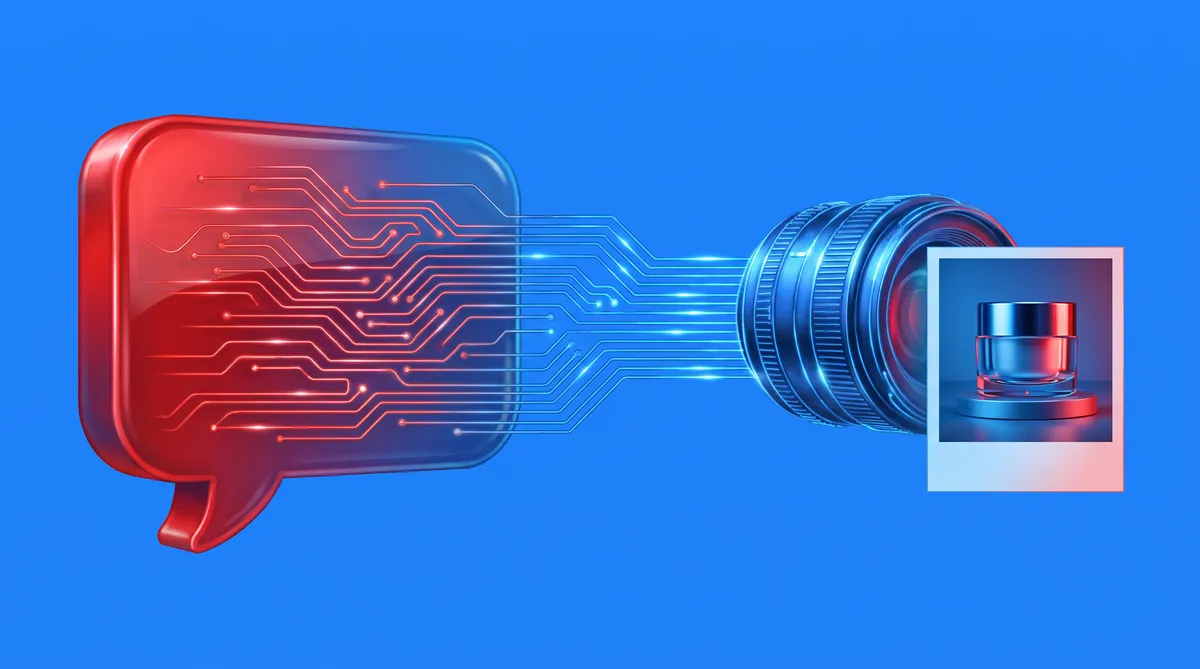
The quality ceiling on AI product photos is usually the prompt, not the model. Most people type something like “perfume bottle, nice background” and judge the tool by what comes back. A frontier reasoning model — GPT-6, Claude, whichever you already pay for — is a better art director than most of us: it has the lighting vocabulary, the composition language, and infinite patience for variations. There are two ways to put that to work with ProductAI: paste in the art-director prompt below, or connect the two directly over MCP so the model generates the images itself while you talk to it.
What a ProductAI prompt actually needs
ProductAI anchors the product from your uploaded photo, so the prompt should never describe the product — it should describe everything around it. The five things worth specifying:
- Surface — what the product stands on (brushed concrete, linen, wet slate).
- Environment — studio sweep, kitchen counter, forest floor, seamless colour.
- Light — type and direction: “warm window light raking from the left” beats “good lighting” every time.
- Camera — angle and distance: low-angle hero, straight-on packshot, overhead flat lay.
- Mood — a palette and two or three adjectives that match the brand.
One sentence covering those five reads like this: “Low-angle shot on brushed concrete, warm late-afternoon window light raking from the left, a sparse eucalyptus shadow across the surface, muted sage and cream palette, calm premium mood.” That is the level a good model will write for you all day.
The art-director prompt to paste into GPT-6
Copy this into GPT-6 (or any capable model), fill the two brackets, and take the output straight to the studio:
You are a senior product-photography art director. I will give you a product and a brand vibe. Write 5 distinct scene prompts for an AI product-photo generator.

Rules:
- One sentence per prompt, 25–45 words.
- Each must specify: surface, environment, lighting (type + direction), camera angle, and mood/palette.
- Never describe the product itself — the generator receives a real photo of it.
- Vary the concepts: one clean studio, one lifestyle context, one dramatic light, one seasonal, one wildcard.

Product: [what it is, one line]
Brand vibe: [three adjectives]
Run all five in ProductAI, keep the two that work, then ask the model for five variations of the winners. Two rounds of that loop beats an hour of typing prompts by hand.
Skip the copy-paste: install the ProductAI MCP
MCP (Model Context Protocol) lets the model call ProductAI itself — you describe the shot in chat, the model writes the prompt and fires the generation, and the image lands in your studio. No key management: the connector signs you in with your ProductAI account via OAuth, and generations use your normal credits.
Claude (web or desktop): add ProductAI as a connector with one click, or paste the server URL into Settings → Connectors:
https://mcp.productai.photo/mcp
Claude Code (terminal):
claude mcp add --transport http productai https://mcp.productai.photo/mcp
Codex (OpenAI CLI): add the server to ~/.codex/config.toml:
[mcp_servers.productai]
url = "https://mcp.productai.photo/mcp"
On an older Codex build without remote-server support, bridge it with npx -y mcp-remote https://mcp.productai.photo/mcp as the server command instead. Either way, the first tool call opens the ProductAI sign-in once and you are set.
A workflow that holds up
Ask for five concepts, generate all five, and judge them at thumbnail size — that is how customers will meet them. Keep two, iterate on those, and stop when a variation stops improving the click, not when it stops looking different. If you are still deciding whether generated photos fit your catalogue at all, our guide to AI product photography tools covers where the seams show — and the free background generator lets you test one prompt a day with no account at all.